Part 2: Add Features with IBM Bob
In this part, you'll use IBM Bob to add new features to the Vector Search application.
Goals of This Part
- Learn how to use IBM Bob
- Give instructions in natural language to generate code
- Add 3 new features
What is IBM Bob? (Review)
IBM Bob = A development tool where AI assists with coding
What it can do:
- Tell it in natural language "I want this feature"
- IBM Bob automatically writes the code
- It also explains the code
Benefits:
- Reduces coding effort
- Significantly shortens development time
- Generates high-quality code
Features to Add
In this part, you'll add the following 3 features:
- Product image display
- Price filter
- Recommendation reason display
The search screen shows the new fields automatically
The search screen displays whatever the /search API returns. Once the API returns image_url or recommendation_reason, or accepts min_price and max_price, the screen shows product images or recommendation reasons, or enables its price filter. In this part, you ask IBM Bob to change only the API and the data.
About hot reload
The application has a hot reload feature, but in this hands-on, stop it once before changing code and start it again after the change to ensure the updates are applied.
Application file structure
app.py: Defines the FastAPI API and serves the search screenschema.py: Defines the Milvus collection schema, index/search settings, and fields returned in search resultsinsert_sample_data.py: Inserts sample product data into Milvusstatic/: The search screen (HTML, JavaScript, and CSS) and the product images (static/images/product-01.svgtoproduct-12.svg). You do not need to change it in this part
Feature 1: Product Image Display
Why is this feature needed?
Current search results are text only. Having product images makes it visually clearer and improves user experience.
Step 1: Open IBM Bob
Click the chat input field at the bottom of the IBM Bob screen. Keep Vector Search Builder selected as the mode.
Step 2: Stop the Application
Press Ctrl+C in the terminal running the application to stop it.
Step 3: Give Instructions to IBM Bob
Enter the following in the chat input field and press Enter:
Key point:
- Clearly communicate what you want to do
Step 4: Wait for IBM Bob's Response
IBM Bob will automatically:
- Understand the instruction
- Find related files
- Generate code
- Display explanation
Step 5: Review IBM Bob's Changes
When IBM Bob finishes, the /search response includes image_url for each product, such as /static/images/product-01.svg. The files IBM Bob edits may vary.
Step 6: Approve Changes
If IBM Bob asks for approval to run a command, approve it.
Step 7: Verify Operation
-
If IBM Bob changed
schema.py, reinsert the sample data because the Milvus collection schema changed:Confirmation prompt
Because your collection already exists from Part 1, the script asks
Drop and recreate this collection? [y/N]. Answery(it only affects your own collection — the uniqueCOLLECTION_NAMEyou set in.env). -
Start the application ( How to start)
- Open the search screen (
http://localhost:8002). If it is already open, reload the page -
Search for:
-
Verify results: each product card now shows a product image
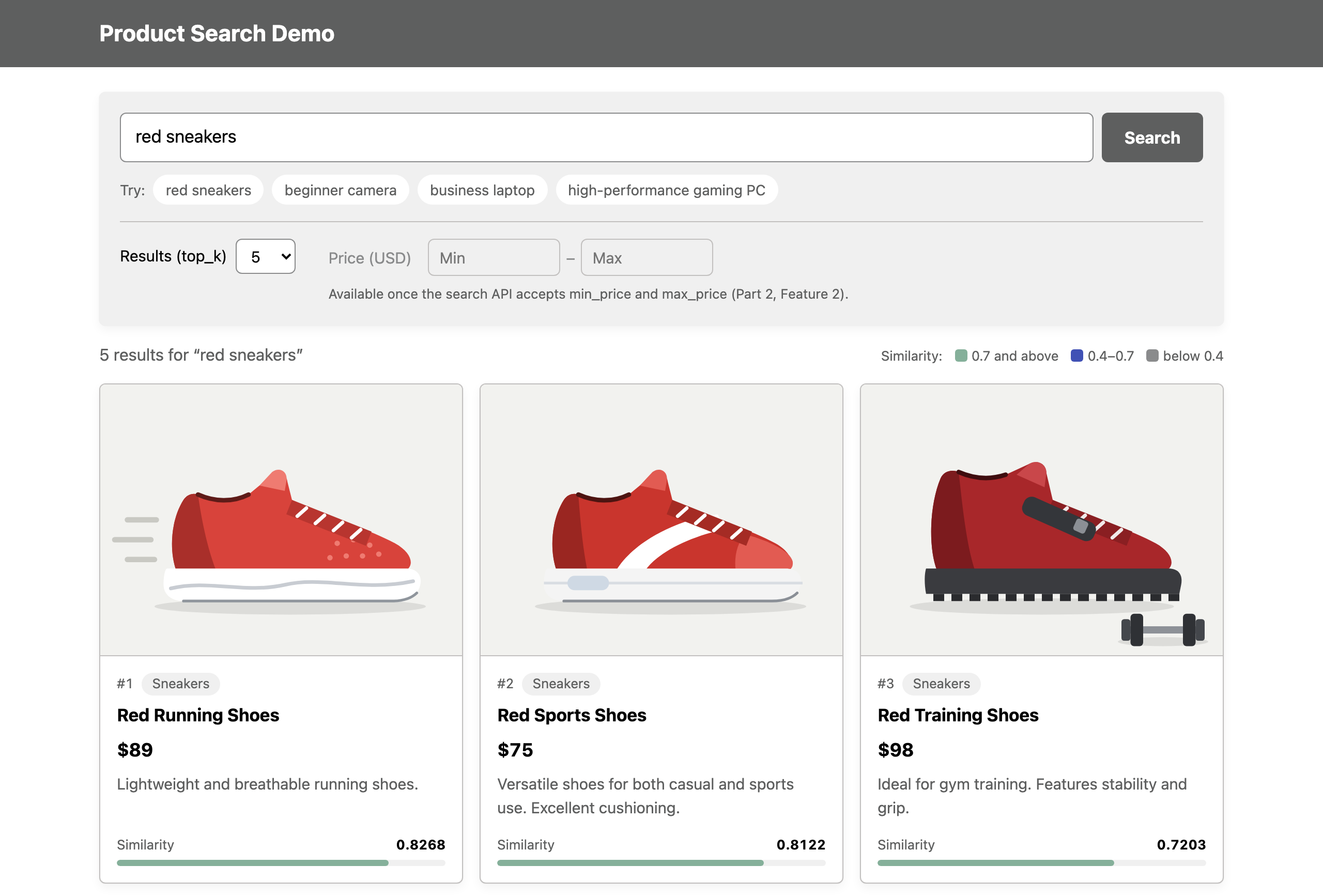
Verification point: Product images are displayed. The API returns image_url values such as /static/images/product-01.svg, and the screen shows the image at that path
Feature 1 Completion Check
- Gave instructions to IBM Bob
- IBM Bob generated code
- Approved changes
- Reinserted sample data if the schema changed
- Product images are displayed in the search results
Feature 2: Price Filter
Why is this feature needed?
Being able to filter by price range allows finding products within budget.
Step 1: Stop the Application
Press Ctrl+C in the terminal running the application to stop it.
Step 2: Give Instructions to IBM Bob
Enter the following in the chat input field and press Enter:
Step 3: Review IBM Bob's Changes
When IBM Bob finishes, the /search request accepts min_price and max_price, and only products in that price range are returned.
Price is already stored in the existing Milvus collection, so this feature usually does not require changing schema.py or reinserting sample data.
Step 4: Approve Changes
If IBM Bob asks for approval to run a command, approve it.
Step 5: Verify Operation
- Start the application ( How to start)
- Reload the search screen. The price filter is now available
-
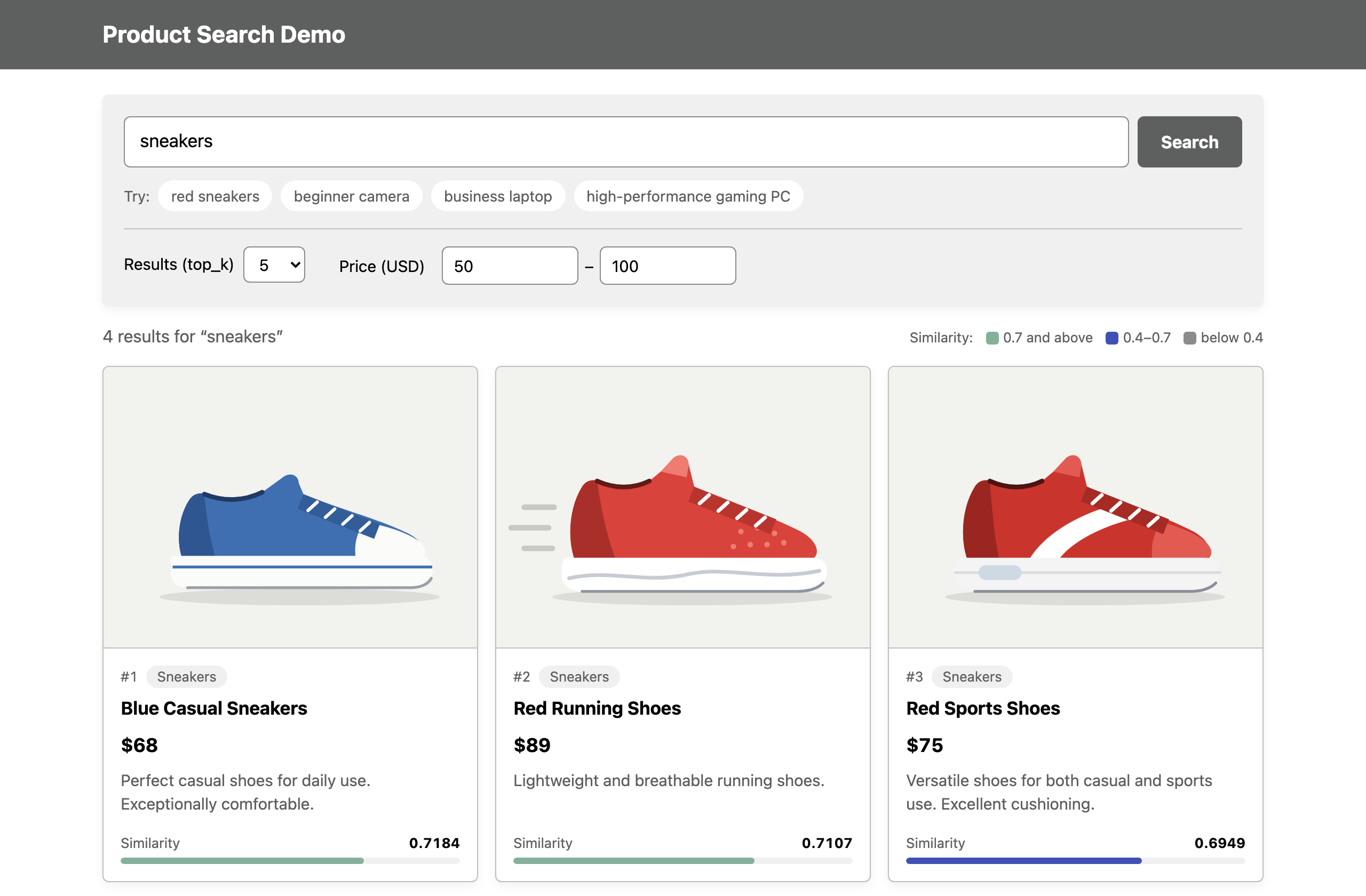
Enter 50 as the minimum price and 100 as the maximum price, then search for:
-
Verify results: Only products between 50 and 100 dollars are displayed
Feature 2 Completion Check
- Gave instructions to IBM Bob
- Approved changes
- Price filter works
Feature 3: Recommendation Reason Display
Why is this feature needed?
Displaying why a product is recommended increases user confidence.
Step 1: Stop the Application
Press Ctrl+C in the terminal running the application to stop it.
Step 2: Give Instructions to IBM Bob
Enter the following in the chat input field and press Enter:
Step 3: Review IBM Bob's Changes
When IBM Bob finishes, the /search response includes recommendation_reason for each product, generated from its similarity score.
The recommendation reason is generated from the search score, so this feature usually does not require changing stored product data.
Step 4: Approve Changes
If IBM Bob asks for approval to run a command, approve it.
Step 5: Verify Operation
- Start the application ( How to start)
-
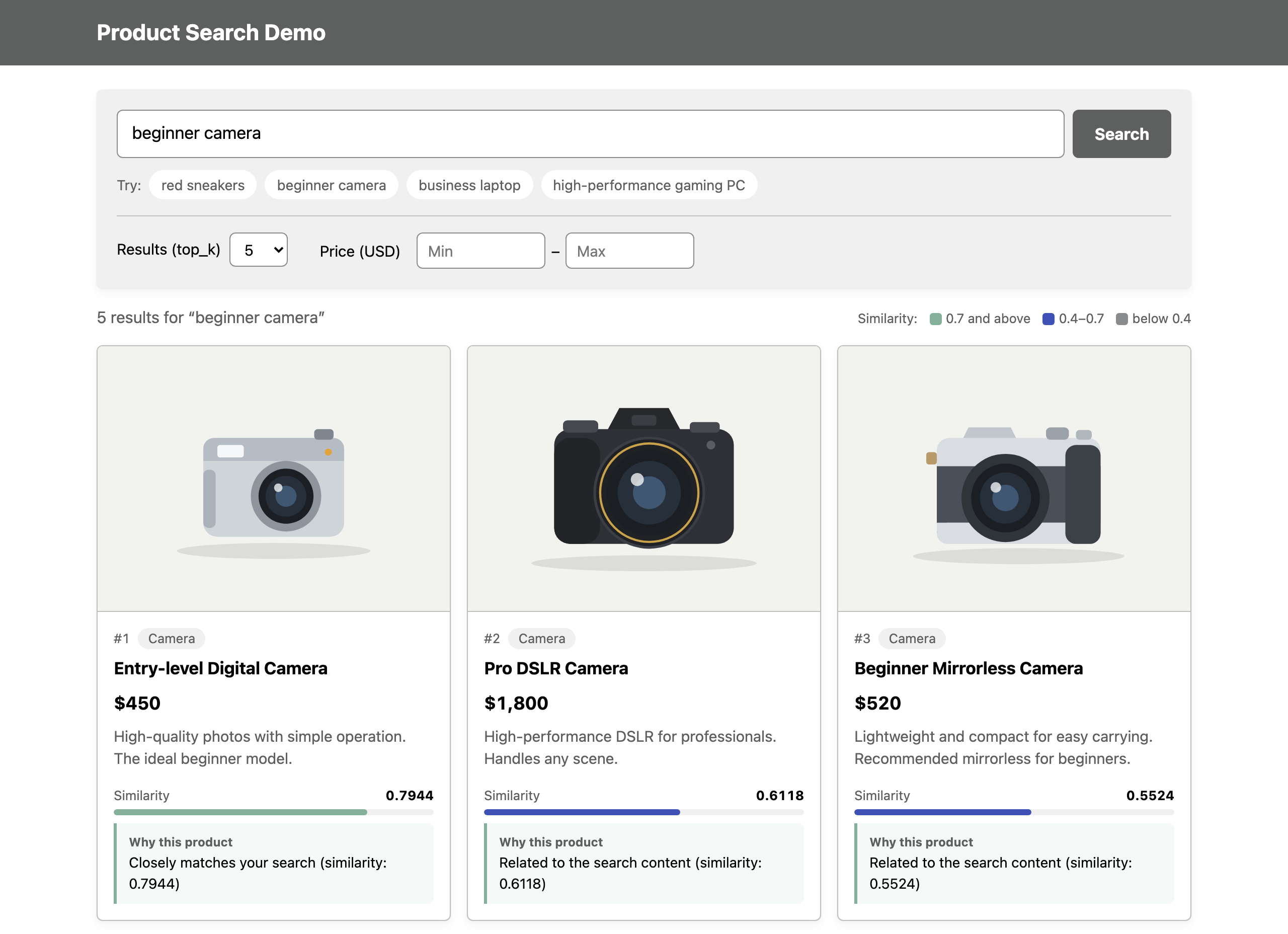
Reload the search screen and search for:
-
Verify results: each product card shows a recommendation reason under Why this product. The wording depends on the code IBM Bob generated
Feature 3 Completion Check
- Gave instructions to IBM Bob
- Approved changes
- Recommendation reason is displayed
Part 2 Completion Check
- Added product image display feature
- Added price filter feature
- Added recommendation reason display feature
- All features work correctly
FAQ
IBM Bob is not responding
- Check internet connection
- Restart IBM Bob
Changes are not reflected
- Verify file is saved
-
Restart the application manually
- Press Ctrl+C in the terminal running the application (stop)
- Start the application ( How to start)
-
Reload the search screen in the browser
If you see Address already in use, the app that IBM Bob started for its own check is still running; reload the screen and continue.