Part 1: Experience Vector Search
In this part, you'll experience how Vector Search works in practice.
Goals of This Part
- Understand what Vector Search is
- Actually run Vector Search
- Experience the convenience of "semantic search"
Step 1: What is Vector Search?
Problems with Traditional Search
Example: Searching for Products on an E-Commerce Site
Your search: "red sneakers"
Traditional search results:
- "red sneakers" → Found
- "red running shoes" → Not found
- "red sports shoes" → Not found
Why not found?
- Traditional search only looks for "characters"
How Vector Search Works
Vector Search searches by understanding "meaning".
Step 1: Text Input
User Input
'red sneakers'
Step 2: Vector Conversion
Embedding Model
Text → Vector
Step 3: Vector Representation
Vector (384 dimensions)
[0.2, 0.8, 0.1, 0.5, ...]
Step 4: Similarity Search
Milvus
Vector DB
Step 5: Search Results
Similar Products List
• Red Running Shoes (0.8268)
• Red Sports Shoes (0.8122)
• Red Training Shoes (0.7203)
Key Point
- Similar meanings result in similar vectors
- Computers can quickly calculate numerical similarity
Your search: "red sneakers"
Vector Search results:
- "red sneakers" → Found
- "red running shoes" → Found (similar meaning)
- "red sports shoes" → Found (similar meaning)
Why found?
- Vector Search understands "meaning"
- "sneakers" "running shoes" "sports shoes" → Understood as similar meanings
How Vector Search Operates
Step 1: Convert text to numbers
"red sneakers" → [0.2, 0.8, 0.1, 0.5, ...] (vector)

Step 2: Find similar numbers
Search for similar numerical patterns from the database

Step 3: Return results
Return products with similar meanings
Key points:
- "Vector" = array of numbers
- Similar meanings result in similar numerical patterns
- Computers can quickly calculate numerical similarity
Step 2: Run Connection Test
Practice: Let's get hands-on
Before running Vector Search, verify that you can connect to the required services.
Enter the following in IBM Bob's chat screen:
IBM Bob runs the connection test script. If IBM Bob asks for approval to run a command, approve it.
If Running Manually
Enter the following in the terminal:
Verify Results
If Successful
==================================================
Milvus Connection Test
==================================================

=== Environment Variable Check ===
✓ MILVUS_HOST: 192.168.1.100
✓ MILVUS_PORT: 19530
✓ MILVUS_USER: root
✓ MILVUS_PASSWORD: ********

=== Milvus Connection Test ===
Connecting to: 192.168.1.100:19530
Auth: user/password auth
✓ Connected to Milvus successfully
✓ Existing collections: 0

==================================================
Test Results
==================================================
Milvus connection: ✓ success

✓ Milvus connection test passed!
  Next step: Create vector collection
The connection test, sample data insertion script, and demo application all read the same .env connection settings. If this test succeeds, the next steps use the same Milvus host, port, and authentication method.
If Failed
Solution:
- Check the
.envfile- Verify that the IP address distributed by the instructor is correctly entered in
MILVUS_HOST( Configuration method) - Verify that
MILVUS_PASSWORDis the password distributed by the instructor — an authentication error such as "auth check failure" means the password is wrong or still the template placeholder
- Verify that the IP address distributed by the instructor is correctly entered in
- Check internet connection
- For other errors, refer to FAQ
Step 3: Insert Sample Data
Practice: Insert Sample Data into Milvus
To experience Vector Search, first insert sample product data.
Enter the following in IBM Bob's chat screen:
IBM Bob runs the script and inserts the sample data.
If Running Manually
Enter the following in the terminal:
If you are already in the setup/participant folder, skip cd setup/participant.
Verify Insertion Results
If you see the following display, it's successful:
==================================================
✓ Sample data insertion completed
==================================================

Collection name: products_taro  # the unique name you set in .env
Entity count: 12

You can start the demo application:
  venv/bin/python app.py
==================================================
Inserted data:
- Number of products: 12
- Categories: Sneakers, Cameras, Computers, Bags
- Each product includes product name, price, description, and embedding vector
- The collection schema and search field names are shared with the demo application, so the inserted data is ready to search immediately
Step 4: Experience Vector Search
Practice: Let's run Vector Search
Once sample data insertion is successful, let's experience Vector Search.
Launch Demo Application
Run this step in the terminal.
Run this after activating the virtual environment created during preparation and installing the packages in requirements.txt.
If you are already in the setup/participant folder, skip the cd ... line.
After running venv/bin/python app.py or venv\Scripts\python app.py, it may look like nothing is happening at first. Startup can take a little time, so wait until the terminal shows the command output.
If Launch Succeeds
If you see output like the following, the application is running.
==================================================
✓ Application started successfully
==================================================

Search screen: http://localhost:8002
==================================================

INFO:     Application startup complete.
Keep the Terminal Open
Closing the terminal stops the application. Please be careful.
If Launch Fails
If ModuleNotFoundError: No module named 'fastapi' appears, the required packages are not installed in the virtual environment. Install the required packages ( installation steps), then start the demo application again ( launch steps).
Verify Launch
Open the following URL in your web browser and verify that the search screen (Product Search Demo) is displayed:
Launch Successful
If the search screen is displayed, the application has started successfully.
Try Searching
Step 1: Enter a Search Query
Type the following in the search box at the top of the screen:
Step 2: Click "Search"
Click the Search button (or press Enter)
Step 3: Verify Results
Products are displayed as cards, most similar first. The top three are the three red shoes: Red Running Shoes (0.8268), Red Sports Shoes (0.8122), and Red Training Shoes (0.7203), followed by Blue Casual Sneakers. Scores may vary slightly depending on your environment and model version.
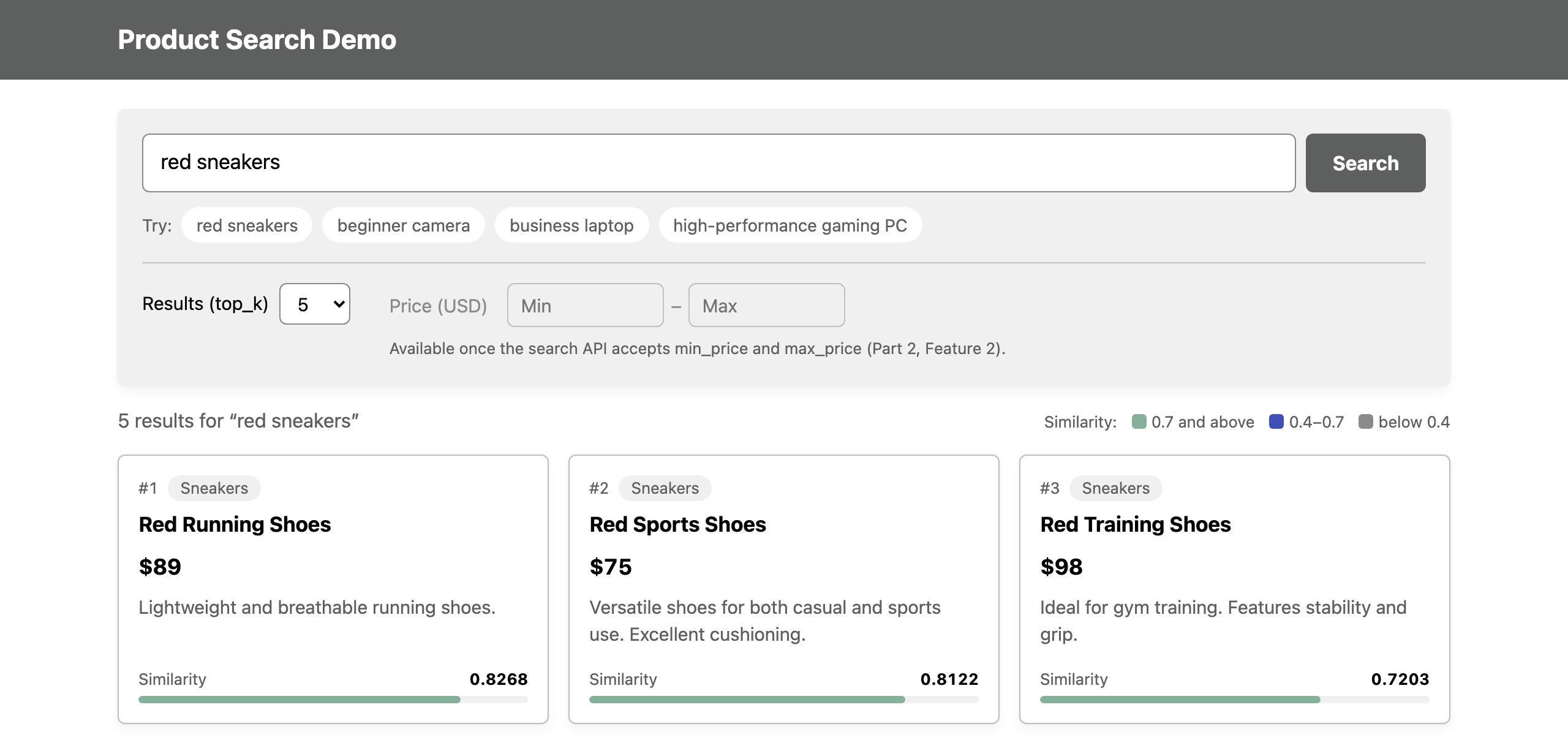
How to read results:
- Rank (
#1,#2, ...): Order of similarity, most similar first - Category (
category): Product category - Product name (
product_name): Product name - Price (
price): Price in US dollars - Description (
description): Description - Similarity (
similarity_score): Similarity (0.0-1.0, higher is more similar). The bar is green at 0.7 and above, blue from 0.4 to 0.7, and gray below 0.4
Results (top_k) sets how many products are returned (default: 5). The price filter stays unavailable until you add it in Part 2.
Optional: See the raw API response
To see the JSON that the search screen displays, open Swagger UI at http://localhost:8002/docs, open /search, click "Try it out", enter the request body below, and click "Execute". Swagger UI loads its files from the internet, while the search screen works offline.
Response (the score may vary slightly):
Try Various Searches
Try the following searches as well. You can type them, or click the matching example under the search box.
Example 1: Search for beginner-friendly products
Example 2: Search for business-oriented products
Example 3: Search for high-performance products
Experience the Power of Vector Search
As you try various searches, you should notice the following:
Observation 1: Found even with different phrasing
- "beginner" → "entry-level" "for beginners" are also found
Observation 2: Similarity scores are useful
- Higher score = more similar
- You can see the reliability of results
Observation 3: Descriptions are also considered
- Understands not just product names but also the meaning of descriptions
- "business laptop" also finds the Lightweight Business Bag, whose description says it fits a laptop
Part 1 Completion Check
- Understood what Vector Search is
- Understood the difference from traditional search
- Connection test was successful
- Inserted sample data
- Launched demo application
- Opened the search screen
- Executed search
- Tried various searches
FAQ
Cannot open the search screen
- Verify the application is running
- Verify the URL is correct (
http://localhost:8002) - Try a different browser
Search results are 0
- Verify sample data has been inserted
- Try changing the search query
Similarity scores are extremely low
- Reinsert sample data with the latest
insert_sample_data.py - Restart the demo application manually
- Press Ctrl+C in the terminal running the application (stop)
- Start the application ( How to start)
- Search again on the search screen
If the existing collection was created with an older search metric, scores may appear very low, such as 0.06.